Can a Grocery List Automatically Sort Recipe Ingredients by Store Aisle?
See how MyFitLife groups recipe ingredients into nine grocery aisles, preserves manual moves, and handles uncertain matches with deterministic rules.
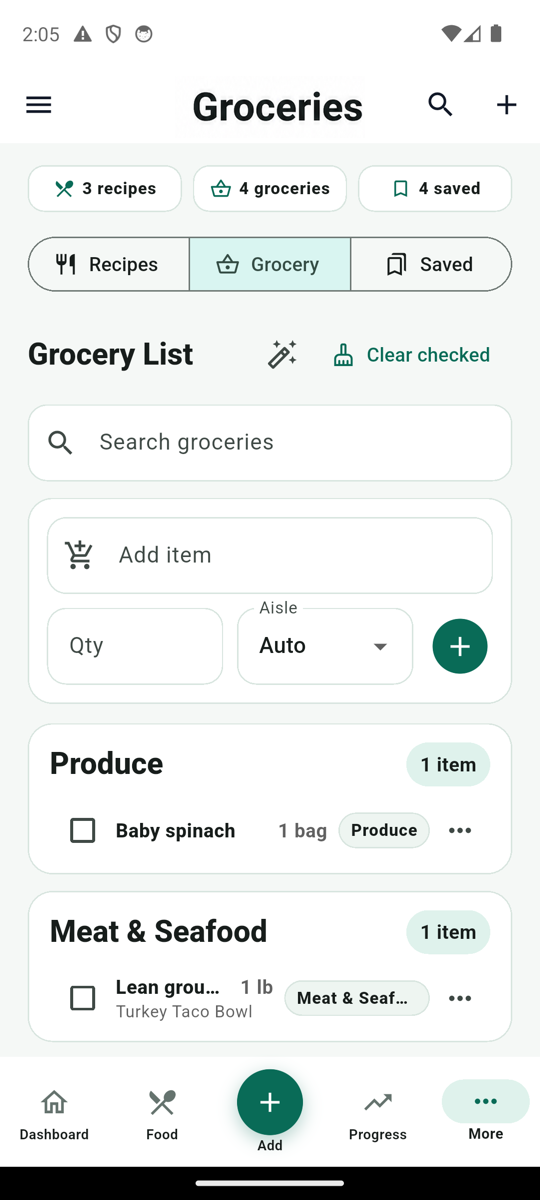
Can a grocery list automatically sort recipe ingredients by store aisle? Yes, within a defined aisle system. MyFitLife classifies each eligible recipe ingredient into one of nine canonical groups—Produce, Meat & Seafood, Dairy & Eggs, Bakery, Pantry, Frozen, Beverages, Household, and Other—and the Grocery tab displays items under those headings. The classification is deterministic and server-owned, not AI. Users can move any item to a different group, and MyFitLife preserves that manual choice when the list is organized again.
“By store aisle” needs one important qualification. MyFitLife organizes a list into practical shopping sections; it does not know a particular retailer’s floor plan, aisle numbers, shelf locations, live inventory, or prices. A supermarket may place tortillas in Bakery, Pantry, or an international-food section. The app gives the list a consistent starting structure and leaves the final store-specific correction with the shopper.
Why organize a grocery list by section?
USDA shopping resources organize information around familiar sections such as Produce, Dairy & Eggs, Meat, Bakery, and Pantry, while federal meal-planning resources connect grocery shopping with recipes and household planning. That structure describes the user benefit, but software still has to decide how an ingredient string becomes a section. A recipe usually supplies lines such as “2 cups fresh spinach,” “1 package whole-wheat tortillas,” or “1 cup frozen blueberries.” Those lines combine an amount, unit, preparation detail, and food name. They are not universal product records or guaranteed aisle identifiers.
Schema.org’s Recipe vocabulary allows recipeIngredient values as text or more structured values, and Google’s recipe structured-data examples commonly use complete ingredient strings. That flexibility helps recipe publishers describe food naturally, but it means a grocery feature must tolerate free-form wording. It should not pretend that every phrase can be mapped perfectly.
The Aisle Trust Loop: Normalize, Classify, Mark, Group, Override
MyFitLife’s workflow can be understood as the Aisle Trust Loop. Normalize the ingredient text. Classify it against a fixed rule set. Mark how the category was chosen and which rule version produced it. Group the resulting items in a stable display order. Then let the user override an uncertain result or return the item to Auto. The loop matters because automation is useful only when its decisions remain bounded and correctable.
1. Normalize the ingredient without erasing the original
For classification, MyFitLife lowercases the ingredient, treats an ampersand like the word “and,” removes punctuation noise, collapses whitespace, and ignores a supported leading quantity and unit prefix. The recognized vocabulary includes common fractions and units such as cups, tablespoons, teaspoons, ounces, pounds, grams, kilograms, milliliters, liters, cloves, cans, packages, bunches, heads, slices, pieces, pinches, and dashes. That allows “2 cups fresh spinach” to be evaluated primarily as “fresh spinach” and “1 lb chicken breast” as “chicken breast.”
Normalization is a comparison step, not a destructive rewrite of the shopping item. The stored recipe item keeps its ingredient string as its name. MyFitLife does not claim to parse every culinary phrase into a perfect structured amount, unit, brand, preparation state, and food identity. Unsupported or ambiguous wording can remain uncertain, which is why the Other category and manual controls are part of the contract.
2. Classify with ordered, deterministic rules
After normalization, the backend evaluates whole-word patterns in a defined order. Frozen is checked before produce and dairy, so “frozen blueberries” can remain a frozen item and “ice cream” can be treated as Frozen rather than Dairy & Eggs. Household and Beverages also have specific patterns. Dairy & Eggs, Meat & Seafood, Bakery, Produce, and Pantry cover a bounded vocabulary of common foods. If no rule matches, the result is Other.
- Produce covers matched fruits, vegetables, herbs, and similar fresh items such as apples, spinach, onions, broccoli, cilantro, and ginger.
- Meat & Seafood covers matched foods such as chicken, turkey, beef, pork, salmon, tuna, shrimp, cod, and fish.
- Dairy & Eggs covers matched terms including eggs, milk, yogurt, cheese, butter, kefir, and sour cream.
- Bakery covers matched breads, bagels, tortillas, pitas, rolls, buns, croissants, and muffins.
- Pantry covers matched staples such as rice, pasta, flour, beans, oats, spices, broth, sauce, nuts, and seeds.
- Frozen, Beverages, and Household use their own specific terms, while unmatched specialty items fall back to Other.
The rules use word boundaries to reduce accidental substring matches. For example, “cod fillet” can match cod without treating an unrelated word containing the same letters as seafood. Deterministic does not mean universally correct; it means the same normalized text evaluated under the same rule version follows the same inspectable path. The classifier does not use AI and does not call Gemini, FoodData Central, a store catalog, or another prediction service.
3. Mark whether the aisle came from rules or a person
Each server-created grocery item stores a canonical category plus internal categorization metadata. A rule-derived choice has categorySource set to rules; an explicit aisle selection uses categorySource manual. The current categoryVersion is 1. This lightweight provenance lets the system distinguish a category it calculated from one the user deliberately chose and identify records created by an older classifier version.
The W3C PROV model provides a broader vocabulary for describing how data was generated or derived. MyFitLife does not claim that its shopping records implement PROV-O or expose a formal provenance graph. The useful shared principle is narrower: derived data is safer to maintain when its origin is recorded. In MyFitLife, that distinction prevents a bulk organize action from silently replacing a person’s aisle choice.
4. Group items in a stable Grocery view
The Grocery tab converts stored categories to display labels, groups items under section cards, and orders the sections using the same nine-category sequence. Each item can show its ingredient name, a separate quantity when one exists, its category chip, checked state, and a recipe title when that source title is available. Search can match the item name, category, display label, or source title. Checked items can be cleared through a separate user action.
Grouping is not the same as optimizing a path through a real store. MyFitLife does not use a physical store map, sort shelves within Produce, predict which entrance someone will use, or reorder categories for a particular retailer. The stable order makes a mixed list easier to scan; the shopper still decides how to navigate the store.
5. Override a result—or return it to Auto
Every grocery item has a More actions menu with Move to aisle. The user can select one of the nine categories or choose Auto. An explicit category becomes a manual choice. Choosing Auto immediately runs the current rules against the existing item name and stores the resulting canonical category as rule-derived. Auto is therefore an instruction to recalculate, not a tenth aisle that remains visible on the list.
The Organize by aisle action applies the current classifier to eligible recipe items and items already marked as rule-derived. It skips manual choices, so manual moves remain preserved; it also preserves checked state and item identity and skips records whose category and version are already current. Repeating Organize on an unchanged list therefore produces no category writes. The mobile interface shows the resulting aisle chip, but it does not display the internal rules/manual provenance or rule-version fields as user-facing badges.
How recipe, manual, and meal-plan items enter Grocery
A saved recipe can send its ingredients to Grocery from a recipe card or detail view. Before that action, the serving control can scale leading numeric quantities for the selected 0.5-to-12-serving range in half-serving steps. MyFitLife sends those scaled ingredient strings to the authenticated backend, which classifies every nonempty line and writes the additions as one batch. The recipe title is retained as source context. If a free-form ingredient has no parseable leading number, the serving action leaves that text unchanged rather than inventing a quantity.
A direct recipe addition does not merge duplicate ingredients or quantities, check the pantry, or suppress an item because it was added earlier. Adding the same recipe twice can create another set of grocery items. The recipe-add request is bounded to 120 ingredient values, and each stored ingredient name is bounded as well. Those are operational safeguards, not a recommendation for how long a practical grocery list should be.
Manual additions follow a different path. The user enters an item name, an optional quantity, and either Auto or an explicit aisle. Auto uses rules-based classification; an explicit aisle is preserved as manual. A Meal Planner export has another contract: its preview ignores skipped slots, collapses whitespace, and deduplicates only exact ingredient strings without regard to letter case. It does not understand that “1 can chickpeas” and “2 cans chickpeas” should be combined. The preview token binds selected slots and ingredient provenance, and the export uses an idempotency key so replaying the accepted export does not create a second set.
What happens when the classification rules change?
Category versioning makes maintenance explicit. Organize can revisit eligible recipe and rule-derived records when their saved category or version is no longer current. Records already produced by the current rules and already in the expected category are counted as unchanged and skipped. Manual records remain untouched even when a new rules version exists. A user who wants a manual item reconsidered can choose Auto for that item.
The organize operation is authenticated, owner-scoped, per-user rate-limited, and currently has a maximum of 200 items. If the underlying list exceeds that processing limit, the backend rejects the action instead of partially reorganizing an arbitrary subset. Shopping-list reads are owner-scoped, while mutations go through authenticated backend endpoints. These boundaries keep a convenience feature from becoming an unbounded write operation.
What automatic aisle organization does not prove
- A category is not a statement about nutrition quality, allergens, dietary suitability, or medical safety.
- A match does not identify a specific branded product or verify a Nutrition Facts or ingredient label.
- A section name does not prove where a retailer stocks the item, whether it is available, or what it costs.
- A checked item records list state; it does not prove purchase, preparation, serving, or consumption.
- A manual correction is preserved, but MyFitLife does not claim to learn a personal model from that correction.
- Other means the bounded rules did not find a supported match; it does not mean the ingredient is invalid.
The FDA’s ingredient-list and Nutrition Facts guidance answer different questions from aisle classification. Packaged-food ingredients are labeling information, and nutrient values depend on serving context. USDA FoodData Central provides food descriptions and nutrient records. MyFitLife’s grocery classifier does not use those sources to make a nutrition judgment. It uses the shopping-item name to choose a practical display group, and nothing more.
A practical MyFitLife workflow
- Open a saved recipe and choose the serving amount needed for the shopping trip.
- Select Add groceries and open Pantry > Grocery.
- Review the nine grouped sections and inspect anything placed in Other.
- Use Move to aisle for a store-specific or personal correction.
- Choose Auto when an item should return to current rules-based classification.
- Use Organize by aisle after importing older or mixed records, then check items while shopping and clear checked items only when ready.
Review still matters. “Frozen spinach” may belong in Frozen for one trip, while a manually entered “spinach” item may refer to fresh produce. “Protein powder” may be Pantry in one household and another store section in another. A useful grocery system makes the default fast and the exception easy to correct.
The MyFitLife answer
MyFitLife answers “Can a grocery list automatically sort recipe ingredients by store aisle?” with a controlled yes. Recipe ingredients and manual Auto items pass through a deterministic, versioned server classifier and appear in nine stable Grocery groups. Leading quantities and common units are ignored for matching without erasing the stored ingredient text. Unknown phrases fall back to Other instead of receiving an invented high-confidence label.
The answer also keeps the user in control. Explicit moves are recorded as manual and survive Organize; Auto recalculates from the current rules; already-current records are skipped; and the operation is authenticated, rate-limited, and bounded. MyFitLife does not promise a store map, inventory feed, price comparison, grocery order, order fulfillment, universal ingredient parser, or nutrition verdict. It turns recipe text into a reviewable shopping structure, then lets the shopper make the final aisle decision.
Sources and further reading
- AMS, Aisle by Aisle U.S. Department of Agriculture Agricultural Marketing Service
- Shopping, Cooking and Meal Planning Nutrition.gov and U.S. Department of Agriculture
- Recipe Schema.org
- Recipe Structured Data Google Search Central
- Types of Food Ingredients U.S. Food and Drug Administration
- How to Understand and Use the Nutrition Facts Label U.S. Food and Drug Administration
- FoodData Central Data Type Documentation U.S. Department of Agriculture
- FoodData Central API Guide U.S. Department of Agriculture
- PROV-DM: The PROV Data Model World Wide Web Consortium
- Input Validation Cheat Sheet OWASP Foundation
- Transactions and batched writes Firebase
- MyFitLife Privacy Statement MyFitLife
- MyFitLife Health Disclaimer MyFitLife
Related articles
- Can a Recipe App Import a Recipe From a URL and Turn It Into a Meal Plan?
- Meal Planning With a Grocery List: A Simple Weekly System
- How to Build a Healthy Grocery List for Weight Loss
Install free. Keep the core tracker free.
Log food, scan barcodes, track macros, and review progress without starting a subscription.