How to Set Up Fasting in MyFitLife: From Schedule to First Fast
Choose a fasting method in MyFitLife, save the right times or days, start and end a real session, handle food logging, and understand what your history records.
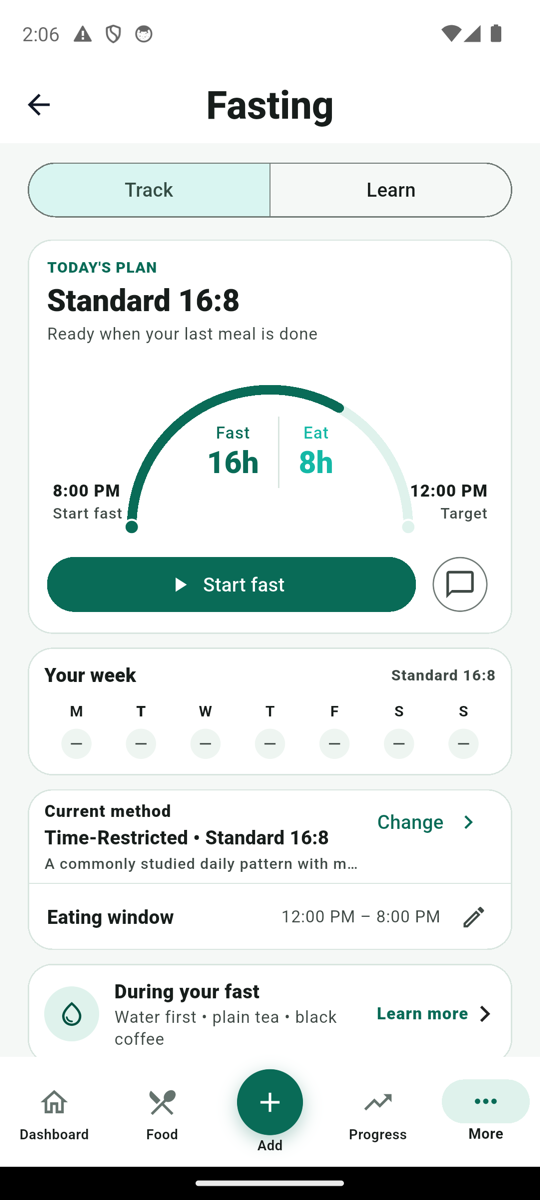
To set up fasting in MyFitLife, open More, choose Fasting, select a method, save its times or days, and tap Start fast when you actually begin. Those last two actions are different. A saved schedule describes what you intend to do; only Start fast creates an active session. The timer then records the session you started and, after you end it, adds it to your history. This guide walks through that entire path on the iOS and Android app.
MyFitLife is a general-wellness tracker, not a fasting prescription. You can use it to organize meal timing and review what you logged without assuming a longer timer is healthier. If you have diabetes, take medicine that interacts with meals, are pregnant or breastfeeding, have a history of an eating disorder, or have another condition affected by food timing, speak with a qualified clinician before changing your eating pattern. NIH and NIDDK emphasize that fasting choices and medication planning depend on the person.
The five-step setup, at a glance
- Open More, then Fasting. The Track view holds your timer, current method, settings, and recent fasts; Learn explains the methods and safety topics.
- In Current method, tap Change. Read the method detail, then tap Use this method to save the selection.
- Tap the edit icon beside the method configuration. Set the applicable times, weekdays, meal window, or first fasting date, then tap Save defaults.
- When you actually begin, tap Start fast. Complete the safety acknowledgement if the app presents it.
- Use End fast when the session ends. Check Recent fasts and Progress to review the recorded event.
You do not need to run the timer simply because you saved a plan. If work, travel, a meal, symptoms, or clinical instructions change the day, keep the plan as a plan and start a session only when it really begins. That distinction makes your history useful later.
Choose a method that matches the schedule you mean
In Fasting, Track is selected by default. The Current method card shows the active choice and its configuration. Tap Change to open Choose a fasting method. The picker separates time-restricted daily windows from periodic patterns. Tap a method to see its example schedule and considerations. Use this method saves that choice; the separate settings screen is where you personalize its boundaries. The Learn tab lets you read method descriptions without changing your selection.
| Method in the app | What you set | How to interpret the plan |
|---|---|---|
| Overnight 12:12 | Eating starts or Fasting starts | A 12-hour daily fasting window and 12-hour eating window. |
| Gentle 14:10 | Eating starts or Fasting starts | A 14-hour daily fasting window and 10-hour eating window. |
| Standard 16:8 | Eating starts or Fasting starts | A 16-hour daily fasting window and 8-hour eating window. |
| Focused 18:6 | Eating starts or Fasting starts | A longer daily window; the app marks it for experienced users. |
| Advanced 20:4 | Eating starts or Fasting starts | A narrow daily eating window; read the caution before choosing it. |
| 5:2 | Two nonconsecutive weekdays and Fasting day starts | Two modified-fasting days; it is not automatically a zero-calorie rule. |
| 24-Hour Fast | One weekday and Fast starts | One strict 24-hour session is planned each week, but you still start it manually. |
| OMAD | Meal time and a 30–240 minute Meal window | One daily meal within the chosen short window. |
| Alternate-Day | First fasting date, Modified or Strict, and Fasting day starts | Alternating days are anchored to the date you choose. |
These are distinct methods, not interchangeable names for the same timer. A 5:2 modified day can include planned food; the weekly 24-hour method is strict. Alternate-Day has its own Modified or Strict choice. OMAD has a meal-window setting, while the daily 12:12 through 20:4 methods divide one day into a fasting window and an eating window. MyFitLife also reads older custom daily plans, but the current Choose a fasting method picker does not offer a new Custom choice. Do not assume the app will turn a preset into an arbitrary duration.
Save the settings for the method you selected
Back on Track, the Current method card has an edit icon beside Eating window, Weekly start, Modified-fast days, Meal window, or Alternating schedule, depending on the method. Tap it to open the settings sheet. Make the change there and tap Save defaults. If the save fails, the sheet displays an error and the previous settings remain in place. Reopen the card afterward to confirm the summary shows the times or days you intended.
For a daily method, the two controls are Eating starts and Fasting starts. Changing either one moves the other boundary so the selected fasting and eating durations still total 24 hours. For example, with Standard 16:8, an eating start of noon produces a planned fasting start of 8:00 p.m.; the next eating start is noon the following day. That noon-to-8:00 p.m. clock example explains the controls, not a recommendation that those hours are suitable for you. Choose times that fit your meals, sleep, work, training, and any professional instructions.
For 5:2, select exactly two weekdays that are not consecutive, including across Sunday and Monday, then choose when a fasting day starts. For Weekly 24-Hour, choose one weekly start day and local start time. For OMAD, choose Meal time and a Meal window from the available 30, 60, 90, 120, 180, or 240-minute options. For Alternate-Day, choose the first fasting date, Modified or Strict, and the local day-start time. If you are unsure which rule you mean, read the method detail before saving; these controls do not make a clinical decision for you.
Start a session when the fast actually starts
The main card says TODAY'S PLAN while no session is active. It shows the chosen method and a Start fast button. Saving a method, reaching its clock time, or receiving a reminder does not press that button for you. When you decide to begin, tap Start fast. The app may show Start your fast safely with method context, stop conditions, and the checkbox I understand when to stop this fast. Read it and acknowledge it to continue. Periodic methods require a current safety acknowledgement before the server starts a session; the app also asks again when an advanced method requires updated acknowledgement.
Once started, the card changes to FAST IN PROGRESS and displays elapsed and remaining time against a target. The active session uses the start time recorded at that action. The plan and the session may therefore differ if you start later than expected. For a weekly 24-hour method, the target is 24 hours from the session start; the saved weekday and local clock time do not create future fasts automatically or backfill a missed week. Avoid treating the target as an instruction to continue when you need to stop.
What happens if you log food during an active fast?
If you log a food while a fast is active, MyFitLife checks the method's food rule. A modified 5:2 or modified Alternate-Day session permits food logging while the session remains active. For other active methods, the app can show Log food during fast? and offer a decision. On most of these methods, you can choose Cancel, Log and keep fast, or End fast and log. On the strict Weekly 24-Hour method, the dialog omits Log and keep fast: food logging requires ending that active session.
| Active method | App behavior | What your record means |
|---|---|---|
| 5:2 or modified Alternate-Day | Food can be logged while the modified session continues. | The method allows food; the app does not decide an individual calorie allowance. |
| Weekly 24-Hour | Choose End fast and log or Cancel; continuing through a food log is unavailable. | The strict recorded session closes before the logged food is added. |
| Daily windows, OMAD, or strict Alternate-Day | The dialog offers Log and keep fast or End fast and log, plus Cancel. | Your explicit choice controls the app record; it does not prove what happened physiologically. |
The phrase keep fast describes a software state. It does not certify that food has no effect on a biological fast. If you ate but did not log it, the timer cannot know. If you consumed calories and want the record to reflect that you stopped, use End fast. Treat meal and fast entries as your own timing record, not a test for ketosis, fat loss, glucose safety, or adherence. Water can be logged in the Hydration area independently of the fasting timer; follow any individual fluid restrictions from your care team.
End, adjust, and review the session
When the fast ends, return to Fasting and tap End fast. The active card then gives way to the plan view and the completed event appears under Recent fasts. Each recent row shows recorded duration and the local start date and time. If you supplied energy or hunger scores, those can appear there too. The Progress page has a Fasting card that summarizes the related record and opens Fasting for detail. A target end time is a goal on the timer; the completed duration comes from when the session was actually ended.
During an active session, the clock icon beside End fast opens Adjust fast. You can change Started and Target end, then tap Save window when the target is after the start. Use that correction for a genuine timing mistake, such as tapping Start fast late. Check the displayed timeline afterward. A changed target edits the record's clock values; it does not establish that you fasted throughout that interval. The Fasting page shows up to ten completed fasts in Recent fasts, so a missing older row there is not necessarily a missing account record.
| What you see | What it records | What it cannot establish |
|---|---|---|
| Saved method and defaults | The schedule you chose and its planned local boundaries. | That a fast began or that you followed it. |
| FAST IN PROGRESS | A session you manually started, elapsed time, and a target end. | Everything consumed, symptoms, or a metabolic state. |
| Recent fasts | Completed sessions with recorded starts and durations. | Health benefit, medical safety, or unlogged behavior. |
Questions that come up after setup
- Why did my saved plan not start a fast? The plan stores your intent. Open Fasting and tap Start fast when you actually begin; schedules and reminders do not start sessions.
- Why are my displayed dates or times different after travel? The saved plan uses local clock boundaries, while active sessions are stored as time instants and displayed in the device's local time. Check the current device time zone and the session detail before assuming history changed.
- Why can I not enable reminders for 5:2, Weekly 24-Hour, OMAD, or Alternate-Day? The optional device-local reminder feature applies to daily time-restricted windows. See the separate fasting-window reminder guide for permission, delivery, and travel behavior.
- Where is a Custom method? The current method picker lists the named presets. An older custom plan can still be read, but these steps do not create a new custom method in the current picker.
- Does finishing a target mean I should keep fasting? No. The target is a planning aid. End a session when you actually stop or when safety, symptoms, meals, or professional instructions call for it.
Keep the safety decision outside the timer
Fasting research covers different schedules, populations, and outcomes. A 2026 Cochrane review found that, for adults with overweight or obesity, intermittent fasting may make little to no difference to weight loss compared with conventional dietary advice, and evidence on unwanted effects remains uncertain. The app's preset names and timer are therefore organizational tools, not proof that any duration is superior. Enough food and fluid during appropriate periods still matter.
NIDDK notes that people with diabetes may need individualized planning for low or high blood glucose, dehydration, and medication changes; insulin and sulfonylureas are particular reasons to involve a care team. NIH advises talking with a healthcare provider before fasting when factors such as pregnancy, breastfeeding, young age, or a medical condition apply. If you feel unwell, stop and follow your care plan or seek medical help as appropriate. MyFitLife can preserve an honest record for that conversation, but it cannot monitor symptoms or make the decision for you.
The MyFitLife answer
Start with More → Fasting, choose a named method, save its relevant defaults, then press Start fast when the session actually begins. During the session, use the food-log decision honestly, End fast when it ends, and correct a timing error with Adjust fast if needed. Recent fasts and Progress then show what was recorded. Keeping the plan, the active timer, and the completed history distinct makes the feature more useful than a clock alone: it lets you review real behavior without turning a saved intention into a health claim.
Sources and further reading
- What Can You Tell Your Patients About Intermittent Fasting and Type 2 Diabetes? National Institute of Diabetes and Digestive and Kidney Diseases
- Fasting Safely with Diabetes National Institute of Diabetes and Digestive and Kidney Diseases
- To Fast or Not to Fast National Institutes of Health
- Intermittent fasting, traditional dietary advice or no treatment: which works better to help adults living with overweight or obesity lose weight? Cochrane
Related articles
- How Do You Plan a Weekly 24-Hour Fast?
- What Should You Know Before Trying Intermittent Fasting?
- Can a Fasting App Remind You When Your Eating Window Starts and Ends?
Install free. Keep the core tracker free.
Log food, scan barcodes, track macros, and review progress without starting a subscription.