How to Connect MyFitLife to Apple Health or Health Connect
Connect MyFitLife to Apple Health or Health Connect. Follow iPhone and Android permission steps, verify your first sync, and fix missing activity.
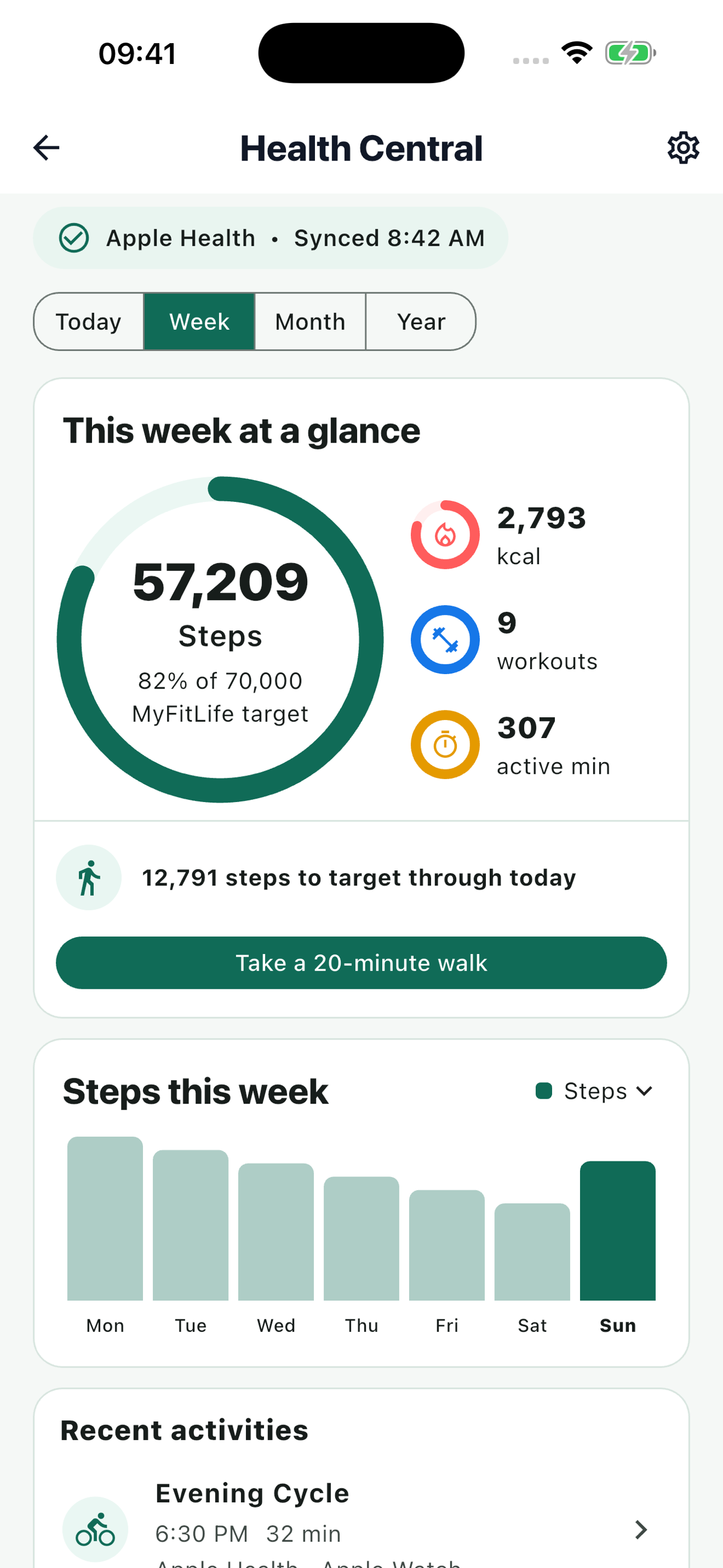
To connect your activity, open MyFitLife on the phone that has access to your health records, then go to More > Trackers > Health Central > Connect. On iPhone, approve Apple Health read access. On Android, approve Health Connect read access. MyFitLife then starts its first activity sync. This guide walks through the screens on each platform and shows how to check the result before you use the numbers in your routine.
Health Central requires MyFitLife Premium. If you see “MyFitLife Premium required” instead of a Connect button, use View Premium to review access first. You also need a supported iPhone or Android phone and activity records in the corresponding health source. Apple Health is the iPhone connection; Health Connect is the Android connection. They are separate phone platforms, not two accounts to sign into inside MyFitLife.
Before you tap Connect: check the source has activity
A permission can allow MyFitLife to read data without creating any data to read. Start with one date you can verify. On iPhone, open Health and inspect Steps under Activity; if you use a watch or workout app, also inspect Active Energy or Workouts for that date. Apple explains that Health can gather records from the iPhone, Apple Watch, and compatible apps, and that contributing sources can be reviewed by data type. On Android, open Health Connect and browse its activity data. Google explains that a connected app may contribute records, while source priority can affect the total shown when multiple sources report the same type.
For example, suppose your phone’s health source shows 6,200 steps so far today but no workout. Use today’s step total to check the first connection; you do not need to create a workout to make the test valid. If the source itself has no steps today, MyFitLife cannot manufacture them. Compare both apps within a short time because today’s total can change as you move or as a provider updates its records.
Connect Apple Health on iPhone
- Open MyFitLife on the iPhone that holds or receives your Apple Health activity. Open More, find the Trackers section, and tap Health Central. If you reach a Premium screen, review access there before continuing.
- On the Connect health activity card, read the requested scope and tap Connect. MyFitLife requests read access to Steps, Active Energy, and Workouts. The Apple Health permission sheet may present these as separate categories; review each category rather than assuming one switch covers everything.
- Allow the activity categories you want MyFitLife to read, then finish the Apple Health authorization flow. For the full Health Central activity view, grant the three requested read categories. MyFitLife does not ask Apple Health to write meals or workouts back to Health in this connection flow.
- Return to MyFitLife and let the first sync finish. A successful connection shows “Health connected. Your last 30 days are synced.” Health Central then replaces the Connect card with the activity dashboard and its Health settings & privacy section.
- Compare the recent date you chose before connecting with the source record in Apple Health. Review the Steps and Active Calories views in Health Central, and check any available workout entries separately. If one category is blank, check that category’s permission and source records before treating the entire connection as broken.
If you need to review permission later, Apple Support’s iPhone guide gives the path: open Health, tap your picture or initials on Summary, then under Privacy tap Apps or Devices and choose MyFitLife. The screen lists the health items MyFitLife requested, and you can change each read permission there. Apple also documents Data Sources & Access within a Health data type, which helps explain why an iPhone, watch, or another app may contribute a particular value. Menus can vary with iOS version, so follow the labels on your phone if they differ slightly.
Connect Health Connect on Android
- Open MyFitLife on the Android phone that has Health Connect access. Go to More > Trackers > Health Central. With Premium active and no source already connected, tap Connect on the Connect health activity card.
- If MyFitLife displays “Health Connect required,” tap Install or update and follow the device’s installation or update flow. Return to Health Central and tap Connect again. Google says Health Connect is built into Android 14 and later through Settings; on Android 13 and earlier it is available as an app from Google Play. Device support and menus can vary.
- When Android asks for Health Connect access, review the requested read categories: Steps, Active calories burned, and Exercise or exercise sessions. Grant the read access you intend to share. These are the core records MyFitLife uses for its activity view; a separate optional activity-intensity insight may request permission later if supported.
- Wait for MyFitLife to finish the first sync and show the connected dashboard. Check the date you selected in Health Connect against Health Central. If you see steps but no workout, first confirm that Health Connect actually contains an exercise session for that date and that Exercise read access is on.
- If a connected app or wearable records activity elsewhere but Health Connect is empty, connect that source app to Health Connect according to its own instructions. MyFitLife reads records available through Health Connect; granting MyFitLife access does not force another app to write its records there.
Google’s Android Help describes where to find Health Connect: on Android 14 and later, open Settings > Security and privacy > Privacy controls > Health Connect; on Android 13 and earlier, install the Health Connect app from Google Play and open it from your app settings. Within Health Connect, go to Permissions and data > App permissions, choose MyFitLife, and review its individual data-type permissions. The exact system wording may differ by Android version or device maker.
Confirm the first sync in Health Central
The first connection reads up to the most recent 30 local days of the approved activity. That is a look-back window, not a promise that every day will contain values. If you recently started using a watch or moved activity from another app, older dates may be empty. A successful connection should let you open the Health Central dashboard, switch among Today, Week, Month, and Year, and review steps, active calories, and workouts where the source supplies them. A missing category is a reason to check its records and permission, not a reason to invent a zero or a workout.
Use one concrete comparison rather than judging the whole chart at once. If Health Connect shows 6,200 steps so far today, select Today and Steps in Health Central and compare the current total. Then check whether the same source shows active calories or an exercise session. A step total can be present while those other records are absent. Also check whether you are comparing the same local day at roughly the same time and whether the source app has finished updating Health Connect or Apple Health. Do not add a workout’s calorie figure to the daily Active Calories value when checking the display; the workout figure is a breakdown, not another day of energy.
For a manual refresh, expand Health settings & privacy in Health Central. Under Sync activity, tap Sync now on a phone running the same platform as the connected source and holding the activity you expect to import. The card shows a last-synced time after a successful sync. MyFitLife also attempts to sync when you open the app or return to it, subject to a short delay between automatic attempts. If the card says Sync on the connected device and its button is Unavailable, you are viewing shared history on a device that cannot read the active provider; use a compatible phone with access to that source and the activity you expect to import.
Troubleshoot the result you actually see
| What you see | Check first | What to do |
|---|---|---|
| MyFitLife Premium required | Account Premium access | Tap View Premium and review access. If a connection already exists, syncing is paused while Premium is inactive; Disconnect remains available. |
| Health Connect required | Whether Health Connect is installed or available on this Android phone | Tap Install or update, finish the device flow, return to Health Central, then tap Connect again. |
| Step, active calorie, and workout access was not granted | The three requested read categories in Apple Health or Health Connect | Allow the categories in the platform permission screen, then retry Connect in MyFitLife. |
| Connected, but a category is blank | That exact category in the source on the same local day | Confirm that the source has a record and MyFitLife has read permission. A step total does not prove active energy or an exercise session exists. |
| Connected, but values look old | Last-synced time and the source app’s latest record | Let the source update Apple Health or Health Connect, then tap Sync now on a compatible phone with the expected records. |
| Sync now says Unavailable | Whether this phone runs the connected provider’s platform | Use an iPhone for a connected Apple Health source or an Android phone for a connected Health Connect source. A same-platform phone can sync its own accessible local records; it does not automatically share every record from another phone. |
An empty result does not identify its cause by itself. Check both the permission screen and the actual source record for the same day and data type. On Android, Google says removing a Health Connect app permission does not delete the data stored in Health Connect; it changes what the app can access. These checks answer different questions and are more useful than repeatedly reinstalling MyFitLife.
Decide separately whether activity changes your nutrition view
Connecting activity does not automatically change your food target or send activity context to Coach Milo. In Health settings & privacy, Adjust calories remaining and Share activity with Coach Milo are separate switches, both off by default. If you turn on calorie adjustment, MyFitLife shows a confirmation explaining the active-calorie credit before applying it. Leave it off if you only want activity context. The existing exercise-calorie guide explains the calculation and why steps and workout calories are not added again.
Keep control of the connection
MyFitLife’s Connect card describes read-only access to steps, active calories, and workouts. It does not request meals, calorie intake, heart data, location, or workout routes for this flow. You can review device permission through Apple Health or Health Connect whenever you want. If you want MyFitLife’s stored activity copy removed, use Health settings & privacy > Disconnect and delete in MyFitLife; that is separate from changing a phone permission, and it does not erase the original Apple Health or Health Connect records. The dedicated Health-data deletion guide explains the consequences before you act.
Once the first date matches the source closely enough to understand what was imported, use Health Central for activity context alongside your nutrition log. Keep checking the source and last-sync time when a value surprises you. A connected label confirms a link; it does not guarantee that a phone, watch, and every contributing app recorded every minute of activity.
Sources and further reading
- Share your data in Health on iPhone Apple Support
- Manage Health data on your iPhone, iPad or Apple Watch Apple Support
- Get started with Health Connect Google Android Help
- Manage connected apps in Health Connect Google Android Help
- Manage your Health Connect data Google Android Help
Related articles
- Can a Nutrition App Sync Apple Health and Health Connect Activity?
- Can You Delete Synced Health Data Without Deleting Apple Health or Health Connect?
- How Does a Calorie Tracker Avoid Double-Counting Exercise Calories?
Install free. Keep the core tracker free.
Log food, scan barcodes, track macros, and review progress without starting a subscription.