Can a Fasting App Remind You When Your Eating Window Starts and Ends?
Learn how MyFitLife schedules device-local fasting-window reminders, handles notification permission and time zones, and preserves safety boundaries.
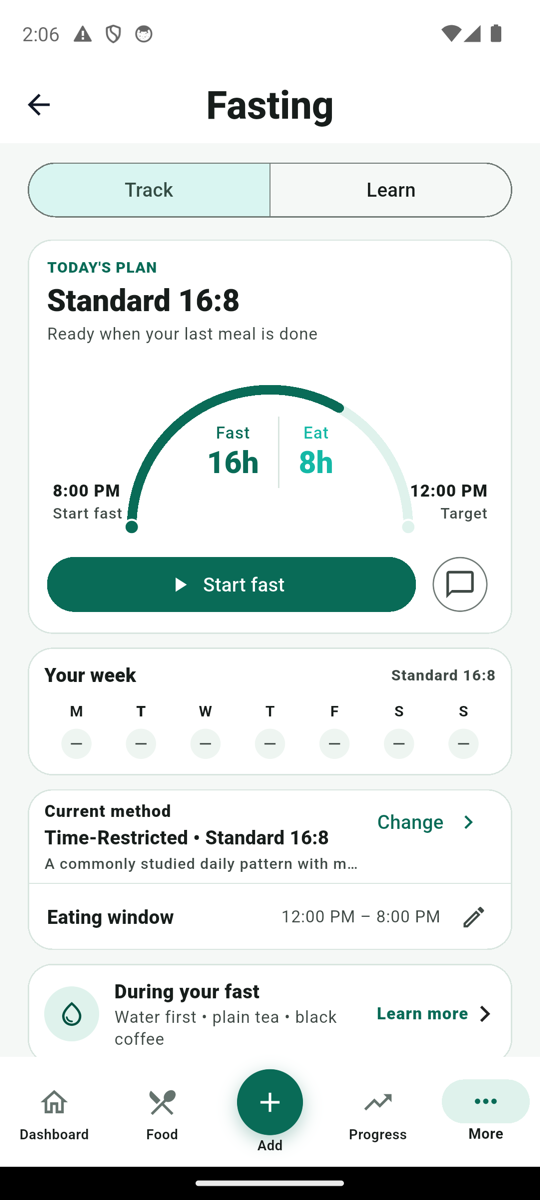
Can a fasting app remind you when your eating window starts and ends? Yes—when you use an eligible daily time-restricted plan, MyFitLife can schedule two optional local reminders on each signed-in iOS or Android device. One corresponds to the saved time when the fast begins and the eating window closes. The other corresponds to the saved time when the fast ends and the eating window opens. These are device-local prompts to review your plan, not commands that change a fasting session.
That distinction matters. Notification permission, operating-system scheduling, a saved fasting plan, and an active fast are four different states. A responsible reminder feature keeps them separate. MyFitLife asks for permission only after you explicitly enable reminders and successfully save an eligible plan. The operating system then controls delivery. Receiving a notification does not establish that a fast occurred, that food was avoided, or that the plan was medically appropriate.
A boundary reminder is not an active-fast timer
MyFitLife stores planned daily boundaries separately from fasting events. For a typical 16:8 plan, a saved eating window might run from noon until 8:00 p.m. The noon boundary is when the planned fast ends and the eating window opens. The 8:00 p.m. boundary is when the eating window closes and the planned fast begins. The reminder service uses those saved clock times. It does not inspect an active timer, infer when you last ate, or move the reminder because you manually started a fast early or late.
Reminders are available only for enabled time-restricted daily-window schedules. OMAD, 5:2, alternate-day, and Weekly 24-Hour methods use different periodic rules and remain ineligible. The reminder switch is disabled for those methods. This prevents a generic daily notification engine from pretending that more complex weekly, alternating, or meal-specific schedules have the same meaning.
Use the Plan → Permission → Schedule → Reconcile framework
A dependable reminder is more than a clock value. The MyFitLife implementation follows a four-stage framework that can also be used to evaluate other health and wellness reminders:
- Plan: confirm that the selected method has two meaningful daily boundaries.
- Permission: ask on the specific device only after the person intentionally enables the feature.
- Schedule: create replaceable, timezone-aware local notifications without claiming exact delivery.
- Reconcile: update or cancel reminders when permission, time, plan, account, or device context changes.
Plan: begin with eligible daily boundaries
Eligibility requires three things at the same time: fasting preferences are enabled, the category is time-restricted, and the schedule kind is a daily window. MyFitLife daily presets such as Overnight 12:12, Gentle 14:10, Standard 16:8, Focused 18:6, and Advanced 20:4 use that model. Each plan covers one complete 24-hour cycle divided into a fasting period and an eating period. The saved fast-start and eating-start times define the two daily boundaries.
Changing either boundary changes the plan, not an event that already happened. Saving a new noon-to-8:00 p.m. eating window can replace future reminders, but it does not rewrite completed fasting history or change the start time of an active session. That separation keeps planning data, reminder state, and recorded behavior honest.
Permission: consent belongs to the user and the device
The reminder control is off by default on each device. Turning it on inside the fasting settings does not immediately prompt the operating system. MyFitLife first saves the updated fasting preferences. Only after that save succeeds does the app request notification authorization and attempt to schedule the two local reminders. If the settings save fails, the sheet remains open, the previous settings remain authoritative, and no permission request occurs.
The opt-in is stored locally for a hashed user identity, making consent separate per user and per device. It is not copied from the legacy backend reminders field and is not automatically shared with another phone or tablet. A user who wants reminders on two devices must make the explicit opt-in on each device. Apple recommends asking for notification authorization in context, and Android gives users runtime control over notifications on current versions. MyFitLife follows that model instead of prompting at first launch.
If authorization is denied, reminders remain off and no boundary notification is scheduled. Startup and resume use a silent authorization check; they do not display a new permission prompt. A person can change notification access later in system settings, so authorization is treated as current device state rather than permanent consent.
Schedule: use local time, stable identities, and replaceable state
After authorization, MyFitLife reads the device local timezone and converts the two saved clock values into the next valid local occurrences. It schedules one recurring local notification for each time-of-day boundary. The operating system can deliver those notifications while the app is not in the foreground; no server push is required for the planned daily prompts.
The schedule uses two stable notification identifiers. Before a changed plan is scheduled, the app cancels both previous identifiers. It then schedules both replacements and records an active fingerprint composed of the hashed user identity, timezone, fast-start time, and fast-end time. When the fingerprint has not changed, reconciliation leaves the existing schedule alone instead of creating duplicates. If one notification fails during replacement, cleanup attempts both identifiers and does not preserve a misleading completed fingerprint.
On Android, MyFitLife deliberately uses an inexact alarm that may run while idle and does not request exact-alarm access. Android documents that inexact alarms can be delayed as the system balances timing against battery-saving restrictions such as Doze. On iOS, the app requests alert and sound access and uses recurring local notification scheduling. In both cases, the notification should be treated as a convenience prompt, not a deadline or safety-critical alarm.
How time zones and daylight-saving changes are handled
Daily eating windows are wall-clock plans. Noon should ordinarily remain noon after travel rather than becoming the same fixed UTC instant. MyFitLife therefore includes the current device timezone in the schedule fingerprint. When the app observes changed fasting preferences or returns to the foreground, it checks the saved opt-in, current authorization, current timezone, and planned times. A timezone change causes the old pair to be canceled and a new local pair to be scheduled.
Daylight-saving transitions introduce a harder edge case: some local times do not exist on a spring-forward day. MyFitLife searches for the next future occurrence that matches the requested wall-clock hour and minute exactly. If a planned time falls inside the skipped hour, that occurrence is skipped instead of being silently shifted to a different recurring time. The intended clock time resumes on the next valid day.
Reconcile: cancel stale reminders instead of trusting old state
A reminder remains useful only while its assumptions remain true. Reconciliation disables and cancels the schedule when notification authorization has been revoked, the fasting plan is disabled, or the selected method becomes ineligible. Opting out also clears the device setting and cancels both identifiers. Account changes and sign-out suspend pending reminders so one person does not receive another account’s planned boundary. Account deletion additionally removes the deleted user’s local opt-in.
The failure behavior is intentionally conservative. A transient plugin, timezone, or storage failure does not automatically erase an opt-in when the app cannot determine device state. That allows a later resume or settings action to retry. Cleanup attempts each stable identifier independently, so one cancellation error does not prevent the app from trying the other. The interface reports permission denial, ineligible schedules, unsupported devices, and general update failures as different outcomes instead of presenting every problem as a successful reminder.
Why the lock-screen message is deliberately generic
Notifications can appear where another person can see them. MyFitLife therefore does not put “start fasting,” “stop eating,” or similar health-related wording in the alert. Both boundaries use the title “MyFitLife reminder” and the body “Open MyFitLife to review your plan.” The app contains the detailed fasting context after the user opens it. This reduces incidental disclosure while still providing a useful cue.
The local opt-in and active fingerprint are only part of the privacy picture. Saved fasting preferences and session history remain account-related wellness data. Protect the device and MyFitLife account, review the current Privacy Statement, and enter only information you are comfortable having processed. Generic notification copy reduces one exposure surface; it does not make all fasting data anonymous.
What “remind me” can and cannot guarantee
The app can request and register notifications, but the operating system remains responsible for delivery. Android battery controls, notification permission, app settings, device shutdown, and other platform conditions can affect whether or when an alert appears. The Android app is configured with notification receivers and reboot-completed support, but no consumer app should promise universal reboot persistence or exact delivery on every device. Permission and delivery are not guaranteed. If a reminder is missing or late, review system notification settings and reopen MyFitLife so reconciliation can run.
Do not use these reminders for medication timing, glucose treatment, emergency decisions, or any situation where a delayed alert could cause harm. A planned eating-window notification is not equivalent to a prescribed medical alarm. It also does not know whether food was consumed, whether a low-glucose event is occurring, or whether continuing the fast is safe.
Keep fasting safety separate from notification technology
A well-engineered notification does not make fasting appropriate for everyone. NIDDK explains that fasting can require individualized planning for people with diabetes because hypoglycemia, hyperglycemia, dehydration, medication timing, and diabetic ketoacidosis can be concerns. The American Diabetes Association notes that delayed meals, skipped food, insulin or certain medicines, exercise, and alcohol can contribute to low blood glucose. A generic app reminder cannot calculate a safe medication adjustment or replace a care plan.
Seek qualified guidance before beginning or changing a fasting routine if you are pregnant or breastfeeding, under 18, have diabetes, kidney disease, an eating disorder or history of one, another chronic condition, or take prescription medication. Follow medication labels and professional instructions even when they conflict with a planned window. Stop for concerning symptoms and seek appropriate care; severe symptoms or a possible emergency require immediate professional help, not another app notification.
How to enable daily-window reminders in MyFitLife
- Open More, choose Fasting, and select an eligible daily time-restricted method.
- Edit the eating window and confirm the planned opening and closing times.
- Turn on Reminders on this device.
- Tap Save defaults and allow notifications when the operating system asks.
- Repeat the opt-in separately on another device if you want reminders there.
- After travel, a permission change, or a schedule edit, reopen the app so current state can be reconciled.
The MyFitLife answer
Yes—MyFitLife can remind you when an eligible planned daily eating window opens and closes. It does so with two opt-in, device-local notifications tied to saved wall-clock boundaries. Permission is requested only after a successful, intentional save. Stable identifiers, timezone-aware fingerprints, cancellation before replacement, permission checks, and lifecycle reconciliation reduce duplicate or stale reminders. Generic alert text also avoids putting fasting details directly on the lock screen.
The trustworthy part of the answer is also what MyFitLife does not claim. The reminders are intentionally inexact prompts, especially on Android. MyFitLife does not automatically start or end your fast; the reminder does not follow an active session, prove adherence, measure metabolism, or determine safety. Periodic methods remain unsupported. Use reminders to review a general-wellness plan, and use qualified healthcare guidance for diabetes, medication, pregnancy, eating-disorder, symptom, or other medical decisions.
Sources and further reading
- Asking Permission to Use Notifications Apple Developer
- Scheduling a Notification Locally From Your App Apple Developer
- Notification Runtime Permission Android Developers
- Schedule Alarms Android Developers
- Time-restricted eating for metabolic syndrome National Institutes of Health
- What Can You Tell Your Patients About Intermittent Fasting and Type 2 Diabetes? National Institute of Diabetes and Digestive and Kidney Diseases
- Fasting Safely with Diabetes National Institute of Diabetes and Digestive and Kidney Diseases
- Intermittent fasting, traditional dietary advice, or no treatment: which works better to help adults lose weight? Cochrane
- Causes and How to Prevent Hypoglycemia American Diabetes Association
- Think It Through: Managing the Benefits and Risks of Medicines U.S. Food and Drug Administration
- Dehydration MedlinePlus and the U.S. National Library of Medicine
- Eating Disorders National Institute of Mental Health
- MyFitLife Privacy Statement MyFitLife
- MyFitLife Health Disclaimer MyFitLife
Related articles
- How Do You Plan a Weekly 24-Hour Fast?
- How to Set Up Fasting in MyFitLife: From Schedule to First Fast
- What Does the New 2025–2030 Food Pyramid Mean for Your Daily Food Log?
Install free. Keep the core tracker free.
Log food, scan barcodes, track macros, and review progress without starting a subscription.