How Do You Log Repeat Meals Without Rebuilding Every Food?
Save and reuse repeat meals in MyFitLife without confusing a Pantry template, future plan, grocery item, or dated food-log event.
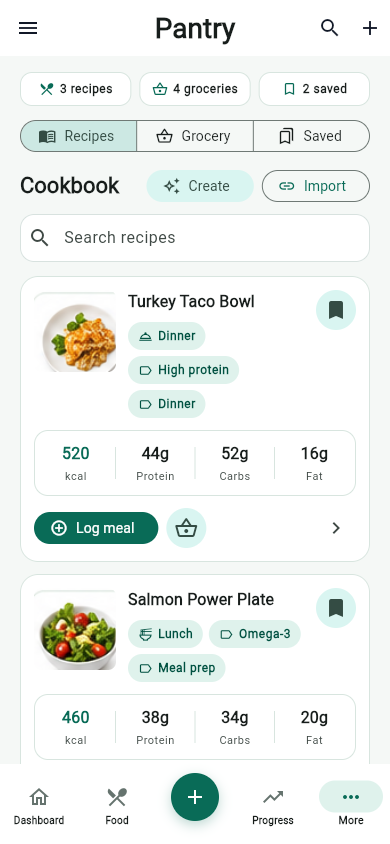
How do you log repeat meals without rebuilding every food? Save a reviewed food or recipe in MyFitLife Pantry, then choose Log when you actually eat it. A saved item is a reusable starting point, not evidence of consumption. You can also send it to Meal Planner for a future date or, when it contains ingredients, add those ingredients to Grocery, but neither action changes the nutrition totals for today. This separation keeps convenience from turning an intention, shopping task, or old favorite into a false food-log event.
Repeat logging is most useful when it removes typing while preserving the decisions that affect accuracy: which product or recipe was used, what one serving means, how much was eaten, and when the event belongs in the record. MyFitLife provides two reusable Pantry collections—Saved Foods and Saved Recipes—because a single saved food item and an editable multi-ingredient recipe have different jobs.
Four records that should never be treated as the same thing
- Saved item or template: a reusable Pantry definition containing a reviewed food snapshot, its usual meal type, source, quantity, calories, and macros. It is available for another action but is not a statement that the food was eaten.
- Plan entry: an editable snapshot assigned to a future date and meal slot. It represents what may be eaten. Its servings can be adjusted before logging, and it remains separate from consumed nutrition.
- Food log entry: a user-confirmed dated log added to breakfast, lunch, dinner, or snack on a particular local date. This is the record that contributes to that day’s displayed nutrition totals.
- Grocery item: an ingredient or food name placed on the shopping list. It can be checked, organized, or cleared, but it does not prove purchase, preparation, serving, or consumption.
HL7 FHIR provides a useful architectural analogy by treating NutritionIntake as an event about food or fluid being consumed while allowing that event to relate to a plan or order. MyFitLife follows the same general design principle—plan and consumption are different states—but this is only an analogy. MyFitLife does not claim that its records implement, export, or comply with FHIR.
The state branches are easy to audit: a Saved item or template can become a Plan entry, a Food log entry, or a Grocery item through separate user actions. Each record answers a different question; groceries do not follow consumption, and none of these state changes is automatic.
Why reuse should reduce friction without hiding uncertainty
Food records depend on self-report, portions, food identification, and nutrient coding. The National Cancer Institute describes misreporting and measurement error as important limitations of dietary records. Saving a repeat item cannot remove those limitations, but it can prevent a verified choice from being rebuilt inconsistently every morning. The goal is a stable reference that remains quick enough to use.
Digital self-monitoring studies support that practical focus. Trials and systematic reviews have found that technology can improve logging adherence within some behavioral interventions, while results vary and adherence often declines over time. That evidence does not prove that saving meals causes weight loss or that a repeated entry is accurate. It supports designing a workflow people can complete consistently.
How Saved Foods work in MyFitLife Pantry
Saved Foods are best for repeat entries that can be represented by one food card: a usual yogurt, a corrected breakfast sandwich, a protein shake, or another familiar item. A compound meal belongs here only when it is already represented as one reviewed food item with the needed details; otherwise use a Saved Recipe for multiple ingredients. Save an existing or recent logged item, or select Save as template while adding a food. In that combined Add Food flow, MyFitLife confirms the consumed log first and saves the reusable copy only after that succeeds.
- Identify the food through search, barcode, photo-assisted entry, recent foods, or manual entry.
- Review its name, brand or preparation description, source, serving, calories, and macros before making it reusable.
- Save an existing logged or recent food, or use Save as template when logging a new one.
- Find it under Pantry, Saved Foods; the shared search matches saved-food names and meal types along with saved recipe titles, meal types, and tags.
- Choose Log only after confirming that the stored item and amount represent what you consumed.
- Choose Remove when the shortcut is stale; removing it does not delete earlier dated food-log records.
A Saved Food can also be sent to Meal Planner or Grocery. Plan creates a future meal-plan item with its own date, meal type, serving value, and food snapshot. Add groceries is visible for a Saved Food, but the current action adds nothing when its stored record has no ingredient details. These actions reuse the reference without claiming consumption.
How Saved Recipes handle servings and ingredients
Saved Recipes are designed for meals whose identity depends on several ingredients and preparation steps. A recipe can retain its title, meal type, tags, ingredients, instructions, serving description, nutrition estimate, and source details. From Pantry, Saved Recipes provides Log meal, Plan, Edit recipe, Add groceries, and Remove. Removing a recipe from Saved only changes its saved status; Delete from Cookbook is a separate action.
Before logging or adding groceries, MyFitLife opens a serving selector. Changing the selected servings scales the displayed calories, protein, carbohydrate, fat, and ingredient quantities from the recipe’s stored base values. The selector does not measure the portion on the plate. If the batch yielded six portions but the recipe was entered as four, correct the recipe or choose a serving amount that honestly represents what was eaten.
Recipe editing changes the reusable recipe for later actions. Review the ingredients, instructions, serving definition, and nutrition estimate after changing brands, quantities, oils, sauces, or yield. A materially changed recipe should not continue to borrow the old nutrition estimate merely because the title stayed the same.
Verify the food source and serving before making it reusable
USDA FoodData Central provides several data types, food descriptions, portions, and nutrient records through its website and API. Those records are valuable inputs, but the selected description still needs to match the actual food. For a branded product, compare the current package with the saved entry. For a generic food, check raw versus cooked state, preparation method, edible portion, unit, and amount.
- Confirm identity: product, brand, flavor, formulation, or recipe version.
- Confirm basis: per serving, per 100 grams, per package, or another stated quantity.
- Confirm amount: the number of servings logged may differ from the label serving.
- Confirm components: oils, sauces, drinks, toppings, and sides can be missing from a single saved card.
- Recheck after change: packaging, serving sizes, formulations, and homemade recipe yields can change.
FDA explains that a Nutrition Facts serving size reflects the amount people typically consume, not a recommendation of how much an individual should eat. Nutrition values are normally presented for that labeled serving and may use permitted rounding. MyFitLife multiplies the stored values by the quantity selected; it cannot make an outdated label, mismatched food, or incorrect portion exact.
What happens technically when you tap Log
The reusable Pantry record and the dated food log remain separate until the user chooses Log. The current mobile action copies the saved food snapshot into the normal authenticated meal-logging request, with its meal type and a newly generated idempotency key. It does not treat the Pantry document itself as consumed or allow the mobile interface to write the nutrition day directly.
Inside one database transaction, the backend reads the correct dated nutrition day, adds the selected item to the requested meal, recalculates the day, updates the daily summary, refreshes the recent-food helper, and records a compact mutation receipt. If an uncertain network response causes the same request to be retried with the same key, the backend returns the authoritative day rather than appending the food again. Reusing that key for a different request is rejected.
Idempotency prevents one specific failure mode: duplicate creation from replaying the same logging intent. It does not decide whether two separate taps represent two servings, detect that the wrong template was chosen, or prove that the food was eaten. The user still controls the real-world meaning of each log action.
Why template edits should not rewrite history
A dated nutrition entry stores the food details used when that event was created. Editing a Saved Recipe later updates the recipe source, not the earlier food-log snapshot. Removing a Saved Food deletes the reusable shortcut, not the separate historical entries created from it. Changing or deleting a reusable item does not rewrite historical food logs. This preserves what the user originally recorded instead of silently applying today’s corrections to last month.
Meal Planner also stores an item snapshot when a saved source is added. Editing the source does not automatically synchronize an existing planned item. Review a future slot when the underlying recipe or product changes, and update that plan deliberately. Once a planned slot is logged, MyFitLife protects it from later plan edits so the plan cannot drift away from the consumed record it created.
What Add groceries really does
For a recipe, Add groceries scales the ingredient text to the selected servings and creates shopping-list entries associated with that recipe. For a Saved Food, the visible action adds its stored ingredient details; if none exist, it returns without changing the list. The Grocery list can then be searched, organized by aisle, checked, or cleared.
This is list creation, not fulfillment. MyFitLife does not automatically place an order, verify inventory, select a retailer, confirm package size, resolve ingredient substitutions, or mark food as eaten. USDA MyPlate planning guidance similarly treats the meal plan and grocery list as preparation tools that support later choices.
A reliable workflow for one repeat breakfast
- Build or locate the breakfast once, using the current label, measured ingredients, or a reviewed recipe.
- Check the serving basis and include frequently omitted extras such as milk, oil, syrup, or toppings.
- Save a one-card entry under Saved Foods, or save a multi-ingredient preparation as a Saved Recipe.
- On the next matching day, search Pantry Saved and confirm that the stored version still matches.
- Choose Log only after eating, or Plan if the meal is still a future intention.
- Use Add groceries when ingredients need replenishing, then review quantities against current inventory.
- Remove or replace the reusable reference when the product, recipe, yield, or usual portion changes.
What the record can and cannot tell you
A reusable workflow can improve consistency and reveal patterns across several sufficiently complete days. It cannot establish true energy intake, diagnose a condition, measure absorption, or guarantee an outcome. Missing foods, restaurant variation, recipe changes, label rounding, forgotten logs, and portion error remain relevant even when every database operation works correctly.
NIDDK suggests keeping a food and beverage diary to identify eating patterns, while also emphasizing realistic goals and sustainable behavior. Use MyFitLife as a general wellness record and planning aid. If detailed tracking becomes obsessive, punitive, or connected to eating-disorder symptoms, reduce or stop tracking and seek qualified support.
The MyFitLife answer
MyFitLife answers repeat-meal logging with a reusable Pantry layer that stays separate from action. Saved Foods and Saved Recipes can be searched and reviewed, then the interface offers Log, Plan, Add groceries, and Remove as separate actions. For a Saved Food, the grocery action changes the list only when stored ingredients exist. Recipes support serving selection and editing, while each Log action creates a distinct dated food event through an authenticated, idempotent backend workflow.
That model saves time without pretending that saving means eating. A template is a reference, a plan is an intention, a grocery item is a shopping task, and a food-log entry is a user-confirmed record. Verify the source and serving when the reference is created, recheck it when the real food changes, and preserve historical snapshots so later edits do not rewrite the past.
Sources and further reading
- Dietary Assessment Primer: Food Record Validation National Cancer Institute
- How to Understand and Use the Nutrition Facts Label U.S. Food and Drug Administration
- Serving Size on the Nutrition Facts Label U.S. Food and Drug Administration
- FoodData Central Data Type Documentation U.S. Department of Agriculture
- FoodData Central API Guide U.S. Department of Agriculture
- Make a Plan USDA MyPlate
- Health Tips for Adults National Institute of Diabetes and Digestive and Kidney Diseases
- Self-Monitoring via Digital Health in Weight Loss Interventions: A Systematic Review Among Adults with Overweight or Obesity Obesity via PubMed
- Does self-monitoring diet and physical activity behaviors using digital technology support adults with obesity or overweight to lose weight? A systematic literature review with meta-analysis Obesity Reviews via PubMed
- The Effect of Electronic Self-Monitoring on Weight Loss and Dietary Intake: A Randomized Behavioral Weight Loss Trial Journal of the American Dietetic Association via PubMed
- Log Often, Lose More: Electronic Dietary Self-Monitoring for Weight Loss Obesity via PubMed Central
- NutritionIntake Resource HL7 FHIR
- Transactions and batched writes Firebase
- MyFitLife Privacy Statement MyFitLife
- MyFitLife Health Disclaimer MyFitLife
Related articles
- How to Connect MyFitLife to Apple Health or Health Connect
- Should You Judge Weight Loss by One Weigh-In or a Trend?
- Can a Supplement Tracker Handle Multiple Doses and Label Scanning?
Install free. Keep the core tracker free.
Log food, scan barcodes, track macros, and review progress without starting a subscription.